
Check whether your option grants are ISO or NSO
The Equity Grants report shows a summary of all grants in your plan, but ISO and NSO designations aren't visible there by default. To see how each grant is classified — or to export this detail from Cake for all grants — you'll need to go into the grant detail view or download the cap table report. (US only)
View ISO/NSO designation for a single grant
Go to Equity plans and open your option plan.
Click the grant you want to check to open the grant detail view.
Under Grant details, look for the Option type field — this shows whether the grant is classified as ISO, NSO, or a split grant (partly ISO, partly NSO).
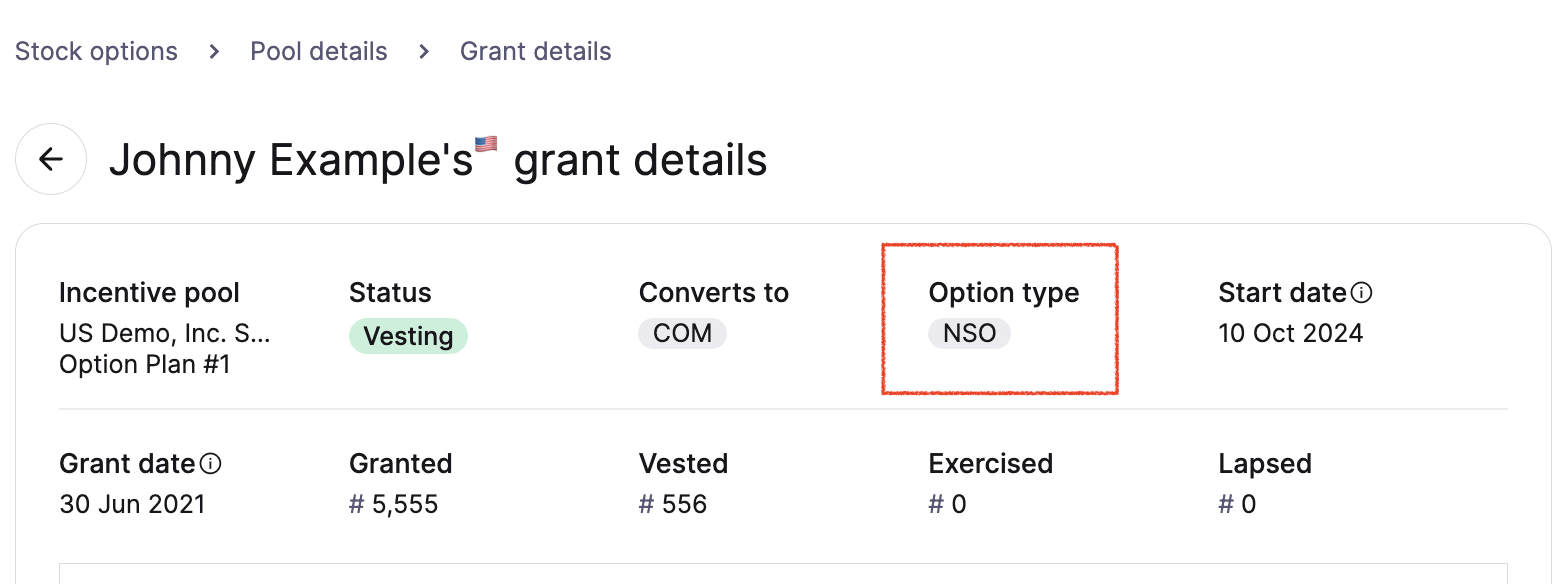
If a grant shows as a split, it means Cake automatically divided it because the ISO portion exceeded the IRS $100K limit. See for how that calculation works.
Export ISO/NSO data for auditors or accountants
The most complete view of ISO/NSO designations is in the cap table report.
Go to Compliance → Reporting.
Under the Exports tab, find the Cap Table card and click Download XLSX.
Open the file and navigate to the Option grants tab.
Find the Award Type column — this shows ISO or NSO for each grant row.
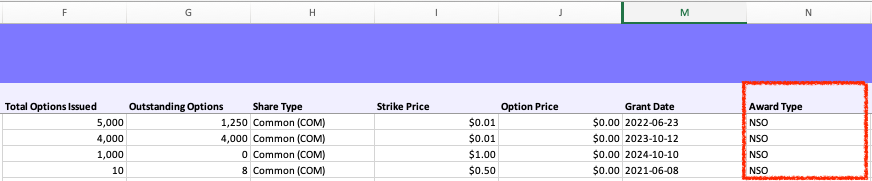
Share this file directly with your accountant or auditor — the Award Type column gives them the ISO/NSO breakdown.