
Search, filter, and sort your cap table
As your company grows, so do your stakeholder and grant lists. Here’s how to quickly find what you need using the search, filter, and sort tools across your cap table, People list, and option pools in Cake.
Search, filter, and sort your cap table
Go to Cap Table and open the Fully diluted (or Outstanding shares) tab to see your stakeholder table.
Use the search bar (top right) to find a stakeholder by name.
Click Filter to narrow by:
Status (Active, Invite sent, Not invited)
Type (Individual, Joint, Company)
Active filters appear as chips you can remove.
To sort, click the sort control in any column header — for example, Stakeholder, Status, Total holdings, Invested, Estimated value, or Ownership.
The Summary tab shows your totals — open Fully diluted or Outstanding shares for the searchable stakeholder table.
Filter and sort your People list
Go to People.
Click Filter and choose how to narrow your list:
State
Country
Status (e.g., Active user, Not invited)
Employee ID
Type
Phone
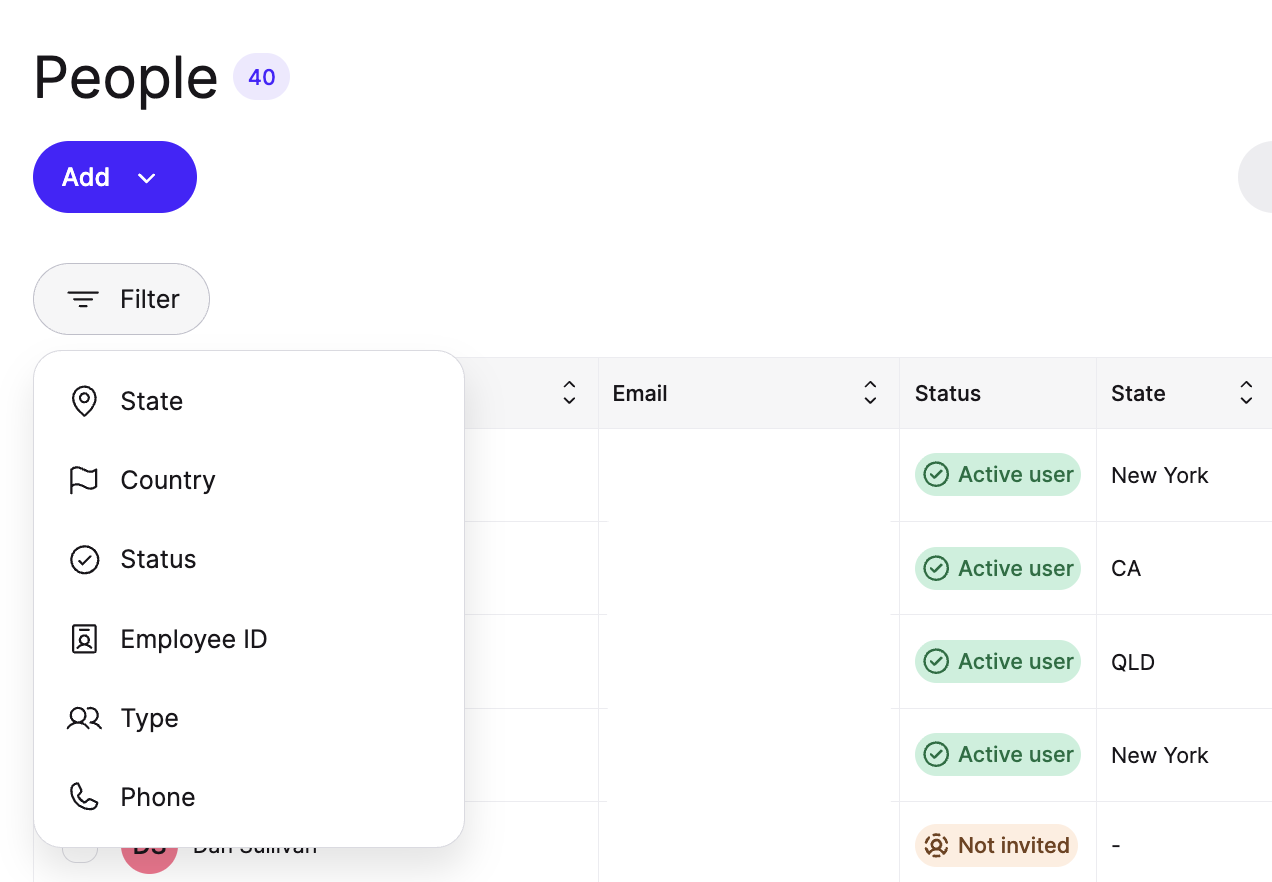
To sort, click the arrows in any column header — for example, Email, Status, State, Country, or Employee ID.
To find a specific person, use the search bar at the top right and search by name.
Filter and sort grants in an option pool
Go to Equity plans → Options and open your option plan to view the pool details.
Scroll to the Grants section.
Click Filter and choose how to narrow the list:
Ownership
Date
Country
Status
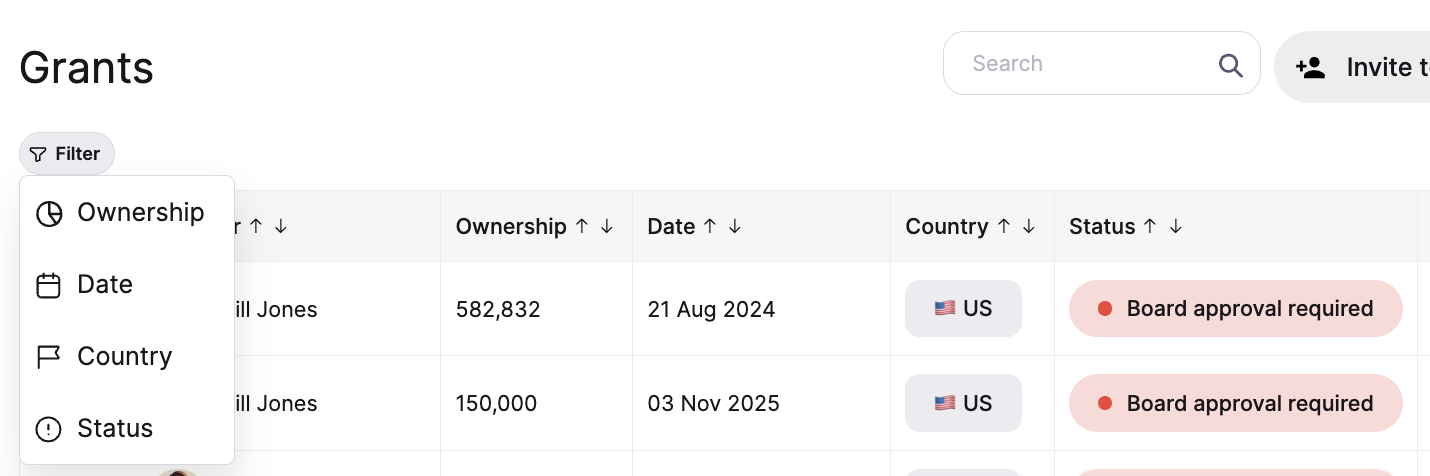
To sort, click the arrows in any column header — for example, Ownership, Date, Country, or Status.
To find a specific grant holder, use the search bar above the Grants table.